Why Host Your Own Project Zomboid Server?
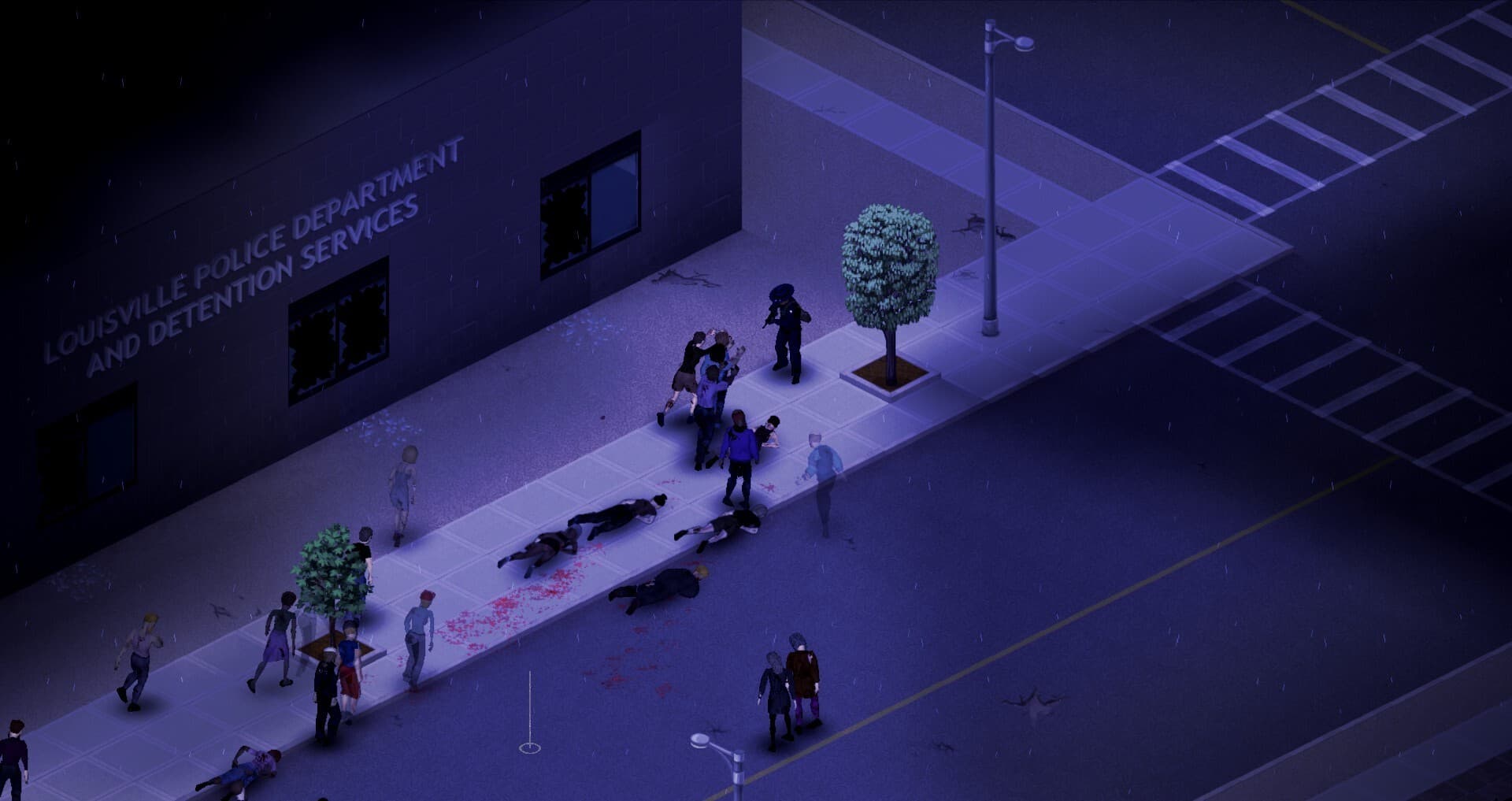
Project Zomboid is the ultimate zombie survival sandbox. While single-player is great, multiplayer takes the experience to another level—build bases together, divide tasks, and fight off the horde as a team.
Running your own server gives you:
- Full control over settings, mods, and who can join
- 24/7 availability so friends can play anytime
- Custom sandbox settings for the exact difficulty you want
- Persistent world that continues even when you're offline
Choosing the Right Plan
Project Zomboid servers are surprisingly lightweight, but mod-heavy servers need more resources:
| Players | RAM | Recommended |
|---|---|---|
| 1-8 | 4 GB | Starter plan |
| 8-16 | 6 GB | Standard plan |
| 16-32 | 8 GB | Performance plan |
Tip: If you're running lots of mods or a large map, go one tier higher.
Step 1: Deploy Your Server
Setting up takes less than 2 minutes:
- Go to HostedGG Project Zomboid hosting
- Choose your plan based on player count
- Complete checkout
- Your server is ready in 60 seconds
Once deployed, you'll receive an email with your server details.
Step 2: Access Your Control Panel
- Log into the HostedGG panel
- Click Manage on your Project Zomboid server
- You'll see your server dashboard with all controls
The server starts automatically with default settings on the latest version.
Step 3: Get Your Connection Details
On your server dashboard, you'll find:
- IP Address: Your server's connection address
- Game Port: Usually 16261
- RCON Password: For admin commands (found in Startup settings)
Write these down—you'll need them to connect.
Step 4: Configure Server Settings
Before inviting friends, customize your server:
Basic Settings
Navigate to Startup to configure:
- Server Name: How your server appears in the browser
- Server Password: Leave blank for public, or set one for private play
- Max Players: Based on your plan
- PvP: Enable or disable player vs player combat
- Public: Whether to show in server browser
Sandbox Settings
For deeper customization, edit the sandbox preset via the File Manager:
- Zombie population and behavior
- Loot respawn rates
- Day/night length
- Infection settings
- Erosion speed
Step 5: Connect to Your Server
From the Project Zomboid Main Menu
- Launch Project Zomboid
- Click Join
- Enter your IP Address and Port
- Enter your Account Username and Password
- First-time players create an account
- Admins use credentials from the Startup page
- Click Join Server
Using Direct Connect
If the server isn't appearing in the browser:
- Click Join → Enter IP
- Enter:
YOUR_IP:YOUR_PORT - Enter account credentials
- Connect!
Step 6: Admin Commands
As admin, you have access to powerful commands. Open the admin panel in-game or use RCON:
Essential Commands
| Command | Purpose |
|---|---|
/adduser "name" "password" | Create a new account |
/grantadmin "name" | Give admin rights |
/teleport "player" | Teleport to a player |
/godmode "player" | Toggle invincibility |
/invisible "player" | Toggle invisibility |
/kick "player" | Kick from server |
Server Management
| Command | Purpose |
|---|---|
/save | Force world save |
/quit | Graceful shutdown |
/servermsg "text" | Broadcast message |
/setaccesslevel "player" "level" | Set permissions |
Step 7: Installing Mods
Project Zomboid has excellent Steam Workshop support:
- Find mods on the Steam Workshop
- Copy the Workshop ID (from the URL)
- In your panel, go to File Manager
- Edit
servertest.ini - Add Workshop IDs to
WorkshopItems= - Restart your server
Popular Mods
- Hydrocraft - Massive content expansion
- Superb Survivors - NPC survivors
- Arsenal(26) GunFighter - More weapons
- Filibuster Rhymes' Used Cars - Vehicle variety
- Authentic Z - Enhanced zombies
Troubleshooting
Can't Connect to Server
- Verify IP and port are correct
- Check if server is online in your panel
- Ensure client and server versions match
- Try direct IP connect instead of browser
Server Not Appearing in Browser
- Wait 5-10 minutes after first start
- Verify Public setting is enabled
- Check that ports are correctly configured
Mods Not Loading
- Ensure Workshop IDs are correct
- Check for mod version compatibility
- Review console for error messages
- Restart server after adding mods
Lag or Performance Issues
- Reduce zombie population
- Lower max players if needed
- Consider upgrading your plan
Tips for a Great Server
- Set clear rules - Post them in your Discord
- Regular backups - Use our automatic backup system
- Start fresh-ish - Don't over-mod on day one
- Build a community - Share your server on r/projectzomboid
Ready to survive the apocalypse with friends? Deploy your Project Zomboid server now and be playing in 60 seconds.
Need help? Join our Discord for support and to find other survivors.